Snake Controls
Use the arrow keys or WASD to control Snake on desktop. On mobile, swipe in the direction you want to move or use the four on-screen arrows. Press Escape or P to pause on a keyboard.
Play with these controls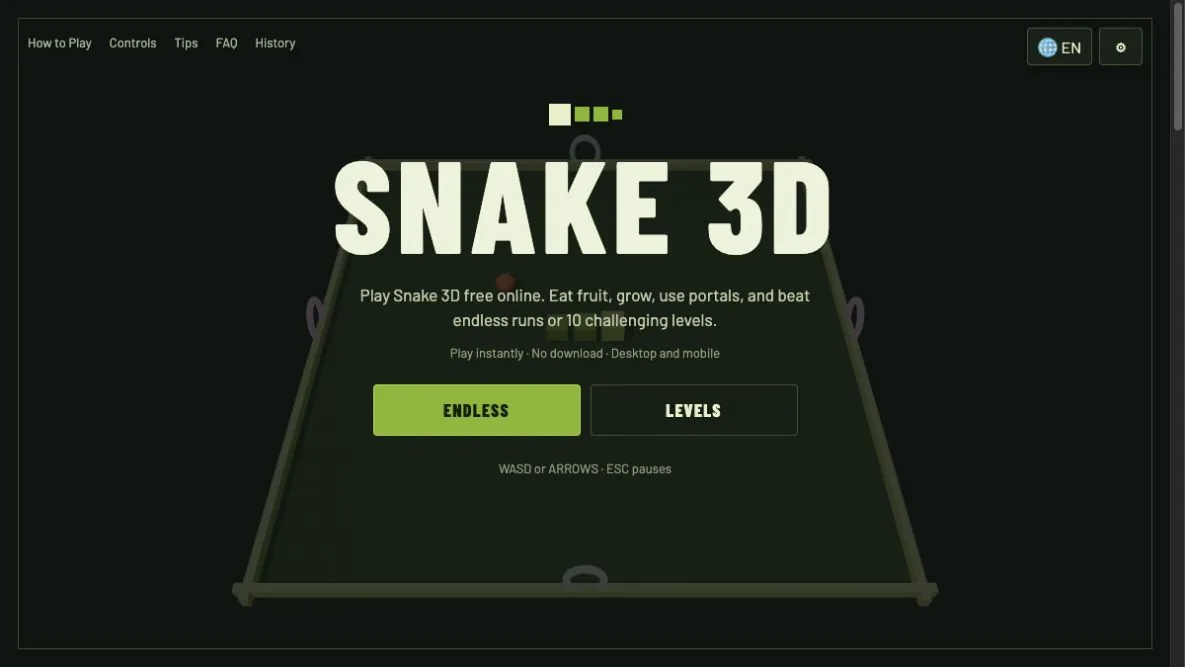
Desktop controls
| Action | Arrow keys | WASD |
|---|---|---|
| Move up | ↑ | W |
| Move left | ← | A |
| Move down | ↓ | S |
| Move right | → | D |
| Pause or resume | Esc or P | |
The snake continues moving after the first direction. A movement key changes the direction of a future grid step; it does not move the snake only while held. A direct reversal is ignored. For example, a snake moving right cannot immediately move left because its first body segment occupies that cell.
Why quick turns feel responsive
Snake 3D uses a small input queue. If the snake is moving right and you quickly press Up and then Left, both valid turns can be prepared before the next two simulation steps. This removes the sluggish feeling that occurs when a game checks only the most recent key at the exact movement instant.
The queue is intentionally limited. It accepts a few deliberate turns without storing a long sequence that would keep controlling the snake after the player changes their mind. Repeating the same direction does not fill the queue.
Mobile swipe controls
Touch the open game area, drag clearly in one direction, and release. The game compares horizontal and vertical movement and chooses the stronger axis. A mostly horizontal swipe moves left or right; a mostly vertical swipe moves up or down. Very short movements are ignored to reduce accidental turns.
Swiping works on the canvas rather than on menus or buttons. The game gives a short vibration when the device supports vibration and the gesture is recognized. Swipe direction controls the snake; it does not drag the camera or rotate the board.
On-screen arrow controls
Four directional buttons appear near the bottom of the screen on touch devices. They use the same input queue as the keyboard and swipe controls, so the rules stay consistent. The up arrow sits above the left, down, and right row to match a familiar directional-pad layout.
Open Settings to choose Medium, Large, or Extra Large controls. Large is the default. Choose Extra Large if the buttons are difficult to reach or if accidental taps are common. Choose Medium when screen space is limited and swipe is the primary input method.
Pause and menu controls
Press Escape or P during desktop play to pause. Escape also closes the Settings screen when it is open. The pause overlay stops the simulation, hides the mobile direction buttons, and offers Continue, Restart, Settings, and Main menu.
On mobile, use the pause button in the top-right corner. Browsers may also pause the game automatically when the page becomes hidden, which prevents the snake from continuing while the player switches tabs or apps.
Control troubleshooting
A turn was ignored
The most common reason is an attempted 180-degree reversal. Turn perpendicular first. A very short swipe may also remain below the gesture threshold.
The keyboard scrolls the page
When the game is active, recognized movement keys prevent their normal browser action. Click the game once if another browser control currently has focus.
Touch buttons are too small
Open Settings, find Control size, and choose Large or Extra Large. The preference is saved locally for the next visit on that device.
The game does not respond at all
Reload the page and confirm that JavaScript is enabled. The production build includes a check that prevents publication when a required interface element is missing.
Once the controls feel natural, continue with the Snake strategy guide. For phone-specific setup, see how to play Snake on mobile.